 Travada Systems
Every trip in Travada holds what it earned and what it cost, so each one shows its own profit. The same numbers then add up by truck, driver, route and month across the dashboard, the income and expense pages, and your reports.
This guide adds one trip by hand. For trips you run again and again, recurring trips and duplicating a past trip save most of the typing. To bring in many at once, import a spreadsheet.
Before you start
Have the trip's paperwork to hand: the rate you agreed, fuel receipts, and any other costs such as parking, repairs or loading fees.
Add the trip
The form has four steps: Trip, Income, Costs and Review. You can move back to any step before you save.
- 1
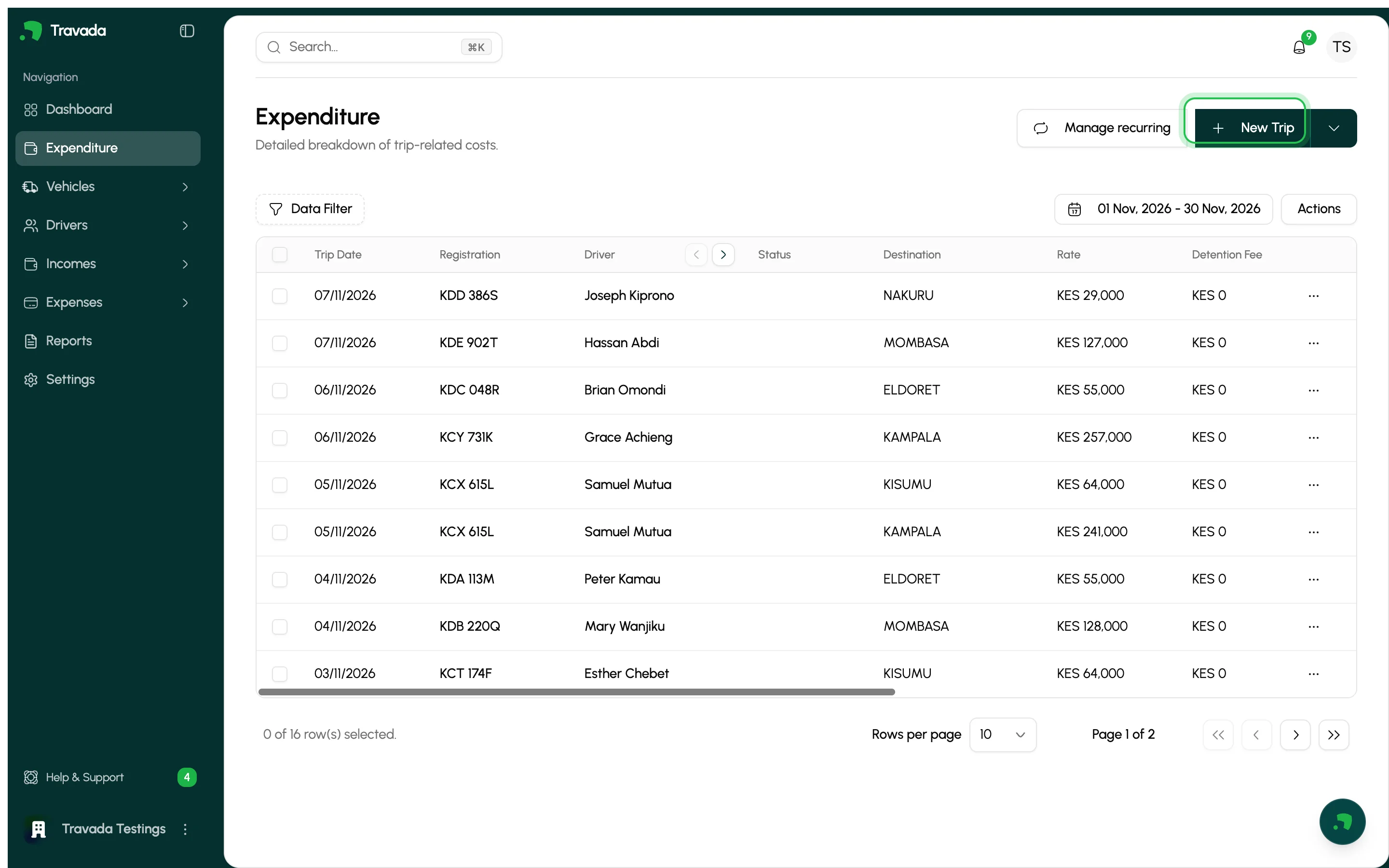
Open the trip form
Go to Expenditure in the sidebar and click New Trip at the top right.
- 2
Fill in the trip
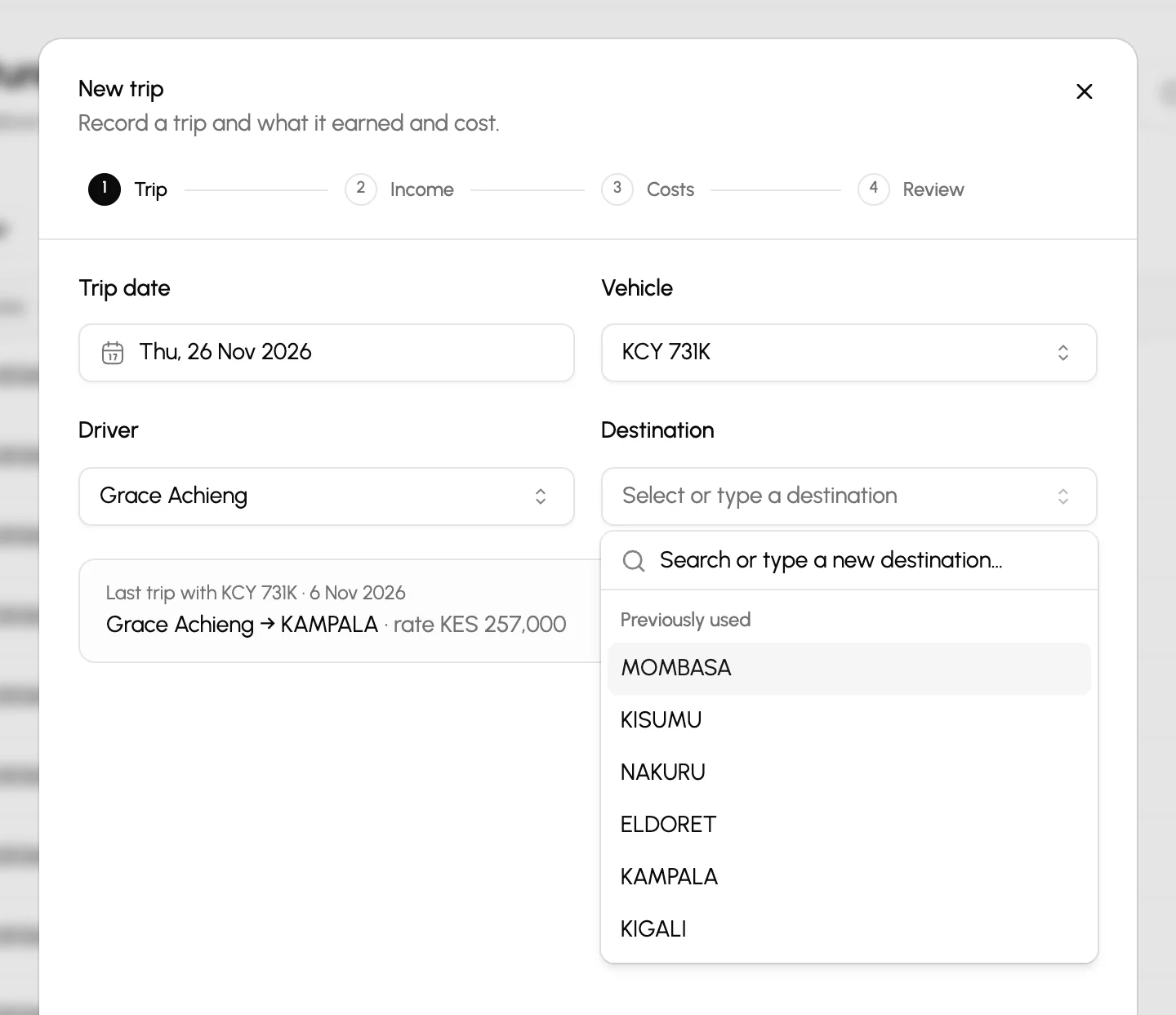
Pick the trip date, the vehicle and the driver, then choose or type the destination. Past dates are fine.
Once you pick a truck, the form shows its last trip, and the destination list starts with places you've used before.
- 3
Add the income
Enter the rate, the amount charged for the trip. Add a detention fee if the client owes you for time the truck was held. Leave it empty if not.
- 4
Add the costs
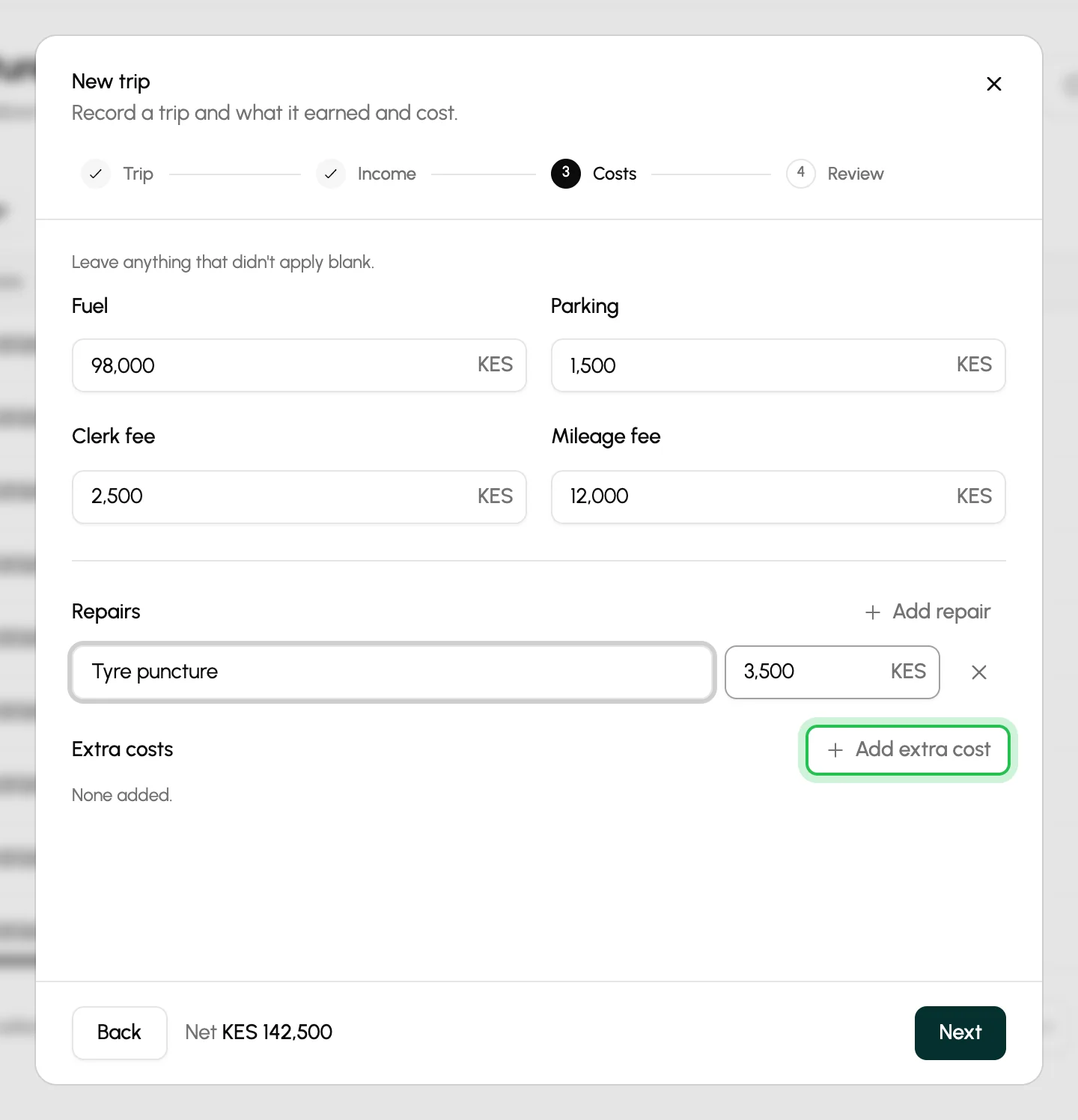
Enter fuel, parking, the clerk fee and the driver's mileage fee. Leave any that didn't apply empty; they count as 0.
For anything else, use Add repair or Add extra cost and give each one a short description, such as "Tyre puncture" or "Loading fee".
- 5
Check and save
The Review step shows the whole trip and its net profit. Click Edit on any section to change it, then Add trip. Entering several trips? Save and add another saves this one and opens a fresh form.
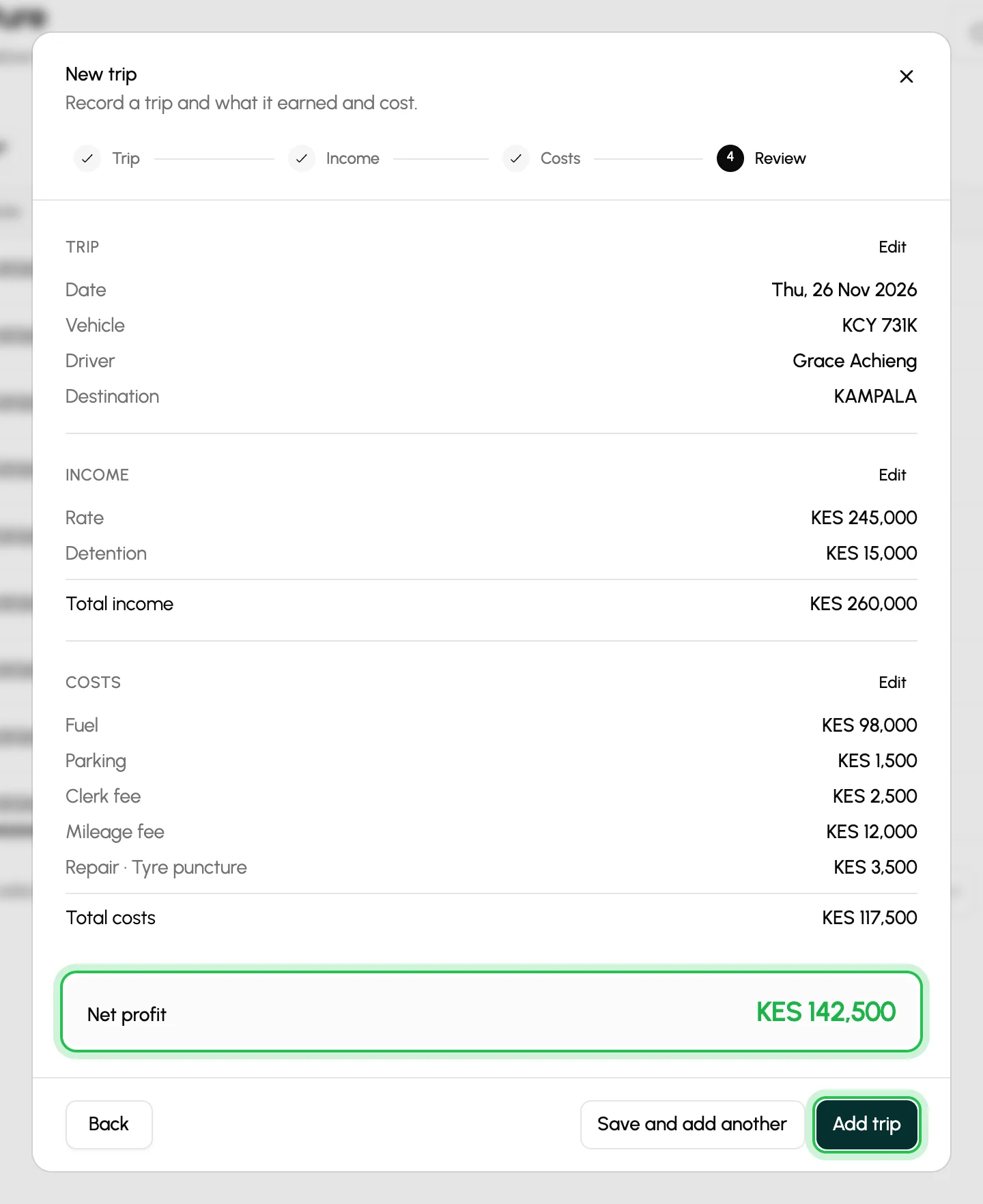
Review flags anything worth a second look before you save.
What Review checks for
These don't stop you saving. They're there so mistakes get caught before they reach your reports:
- A loss. The trip costs more than it earned.
- No fuel. Fuel is 0. That's right for some trips, but it's often a missed receipt.
- A future date. The trip date is after today.
- A possible duplicate. The same truck already has a trip on that day.
After you save
The trip appears in the Expenditure table, by its trip date. Its rate and detention show under Incomes, its costs under Expenses, and the dashboard and reports include it straight away.
Made a mistake? Open the trip's menu in the table to edit or delete it.
Common problems
Every field on the Trip step is needed: date, vehicle, driver and destination. The one that's missing is marked in red.
Inactive trucks and drivers are hidden from the form. Make them active again under Vehicles → Disabled Vehicles or Drivers → Inactive Drivers.
No. Keep it separate, so the detention report can show what you've charged for waiting time by destination and month.