Travada Systems
The Expenditure page lists every trip. A date range and filters narrow it to the trips you're asking about, and what you narrow it to can be exported or shared as a link.
Pick the dates
The date button at the top of the table shows the period you're looking at. Click it to pick dates on the calendar or choose a preset: Today, Yesterday, This Week, Last Week, Last 7 Days, This Month, Last Month, This Year or Last Year.
Filter the trips
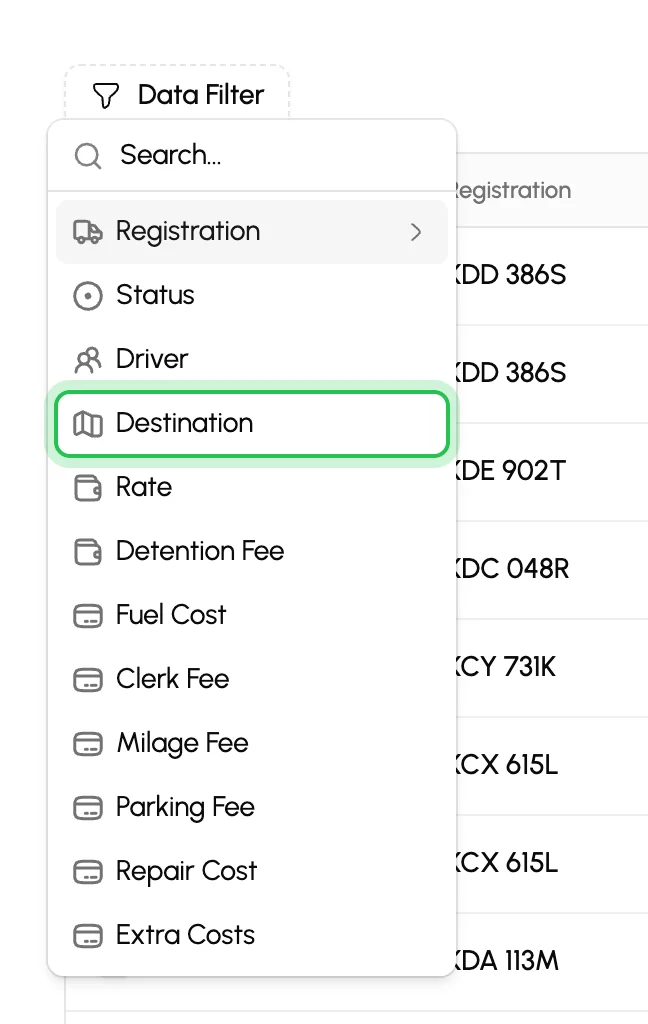
Click Data Filter and choose what to filter on: Registration, Status (pending or completed), Driver, Destination, or any amount, from Rate and Detention Fee to Fuel Cost, Repair Cost and Extra Costs. Lists like Destination show how many trips each value has.
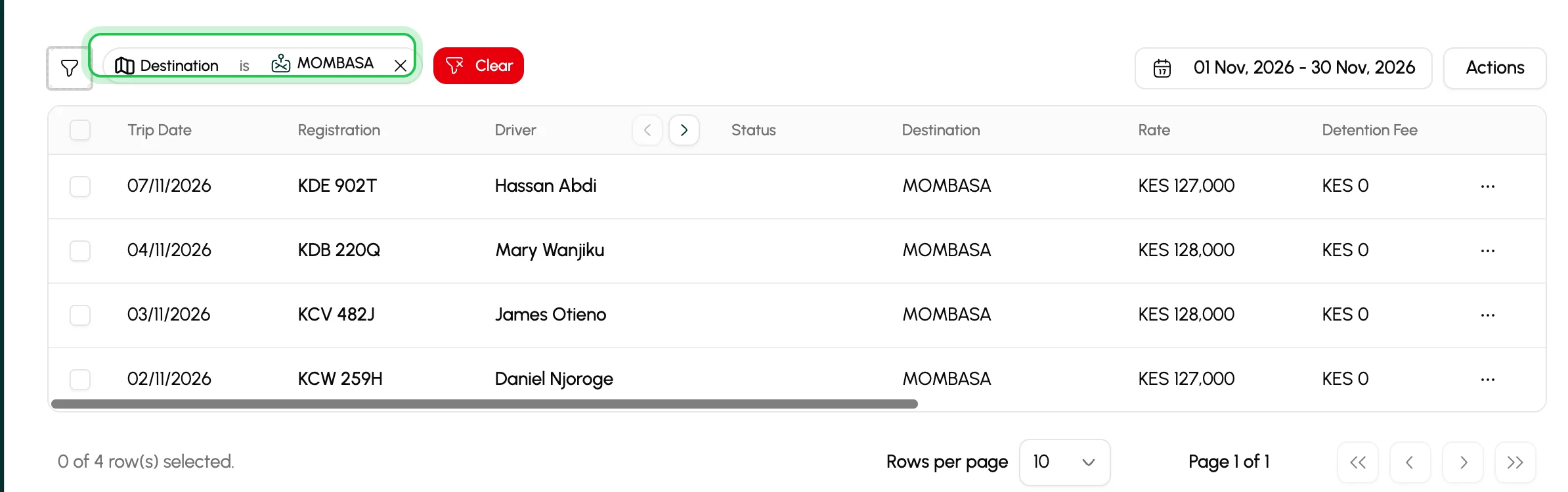
Each filter appears as a chip above the table. Click the word in the middle, such as is, to change how it matches: is or is not for one value, is any of or is none of for several. The × removes it. Add as many as you need; a trip has to match all of them. Clear removes them all.
Export or share what you see
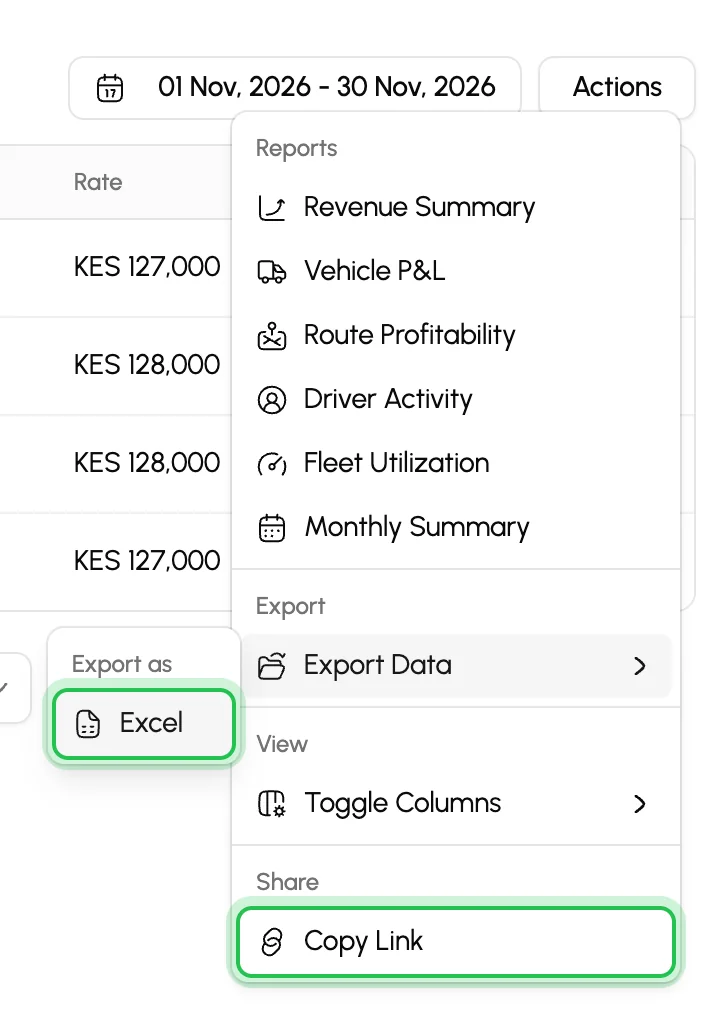
Open Actions:
- Export Data → Excel downloads the trips that match your dates and filters. Tick rows first to export only those.
- Copy Link copies a link to this exact view. Anyone on your team who opens it sees the same dates and filters.
- Toggle Columns shows or hides columns in the table.
- The Reports at the top make a report from the same trips. See Generate a report.