 Travada Systems
A recurring trip is a template plus a schedule. On each scheduled day Travada creates a pending trip from the template. You then confirm it, correcting anything that was different that day, such as fuel or detention.
Pending trips don't count in your reports until they're confirmed, so an estimate never passes for a real figure.
Create a recurring trip
- 1
Open the form
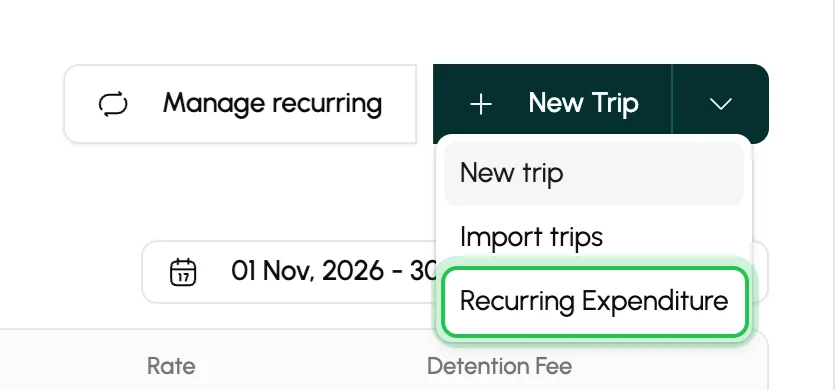
On the Expenditure page, open the arrow next to New Trip and choose Recurring Expenditure.
- 2
Fill in the template
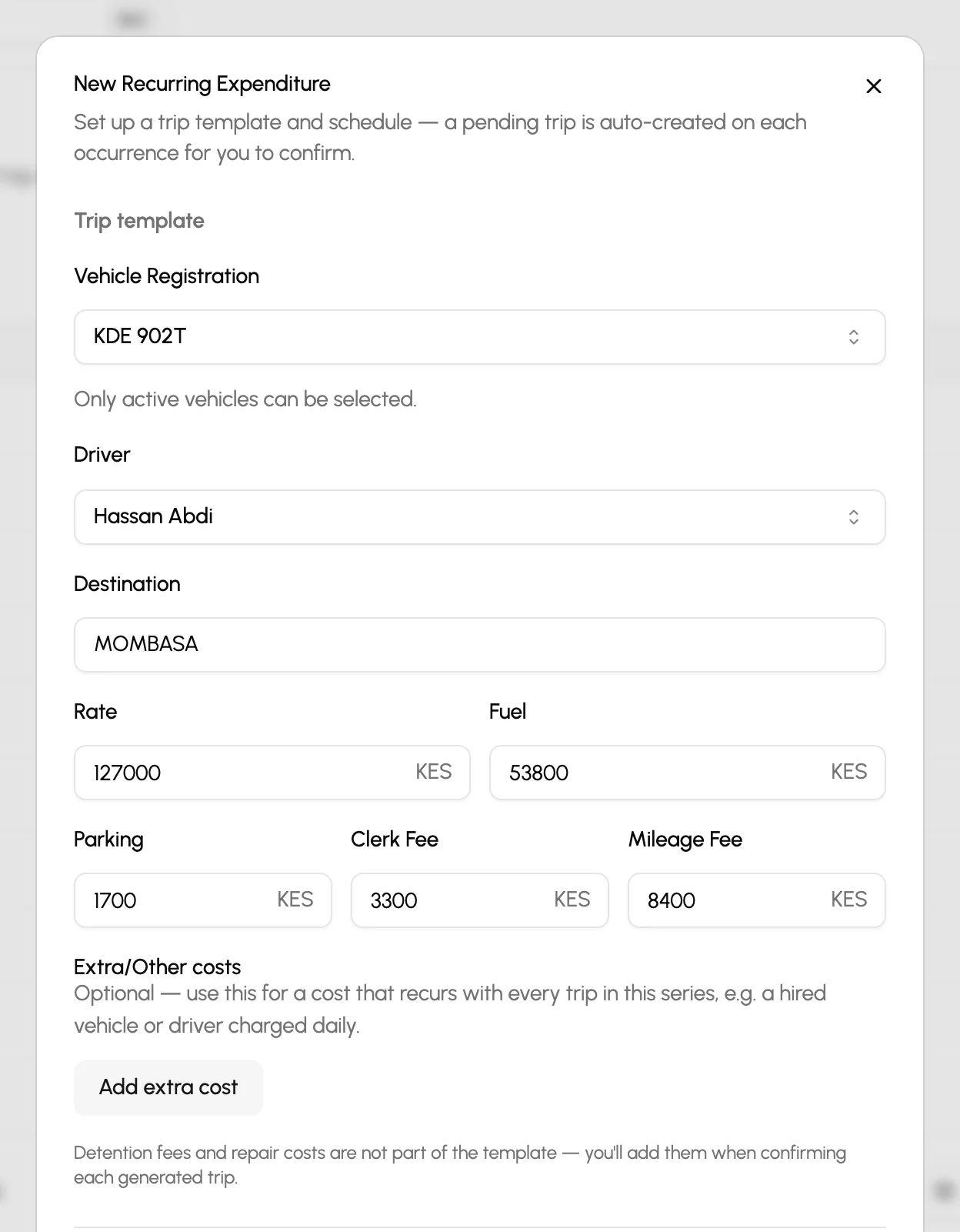
Choose the vehicle, driver and destination, then the usual rate, fuel, parking, clerk fee and mileage fee, plus any extra cost that comes with every trip, such as a hired truck charged by the day.
Detention and repairs aren't part of the template. You add them when you confirm each trip.
- 3
Set the schedule
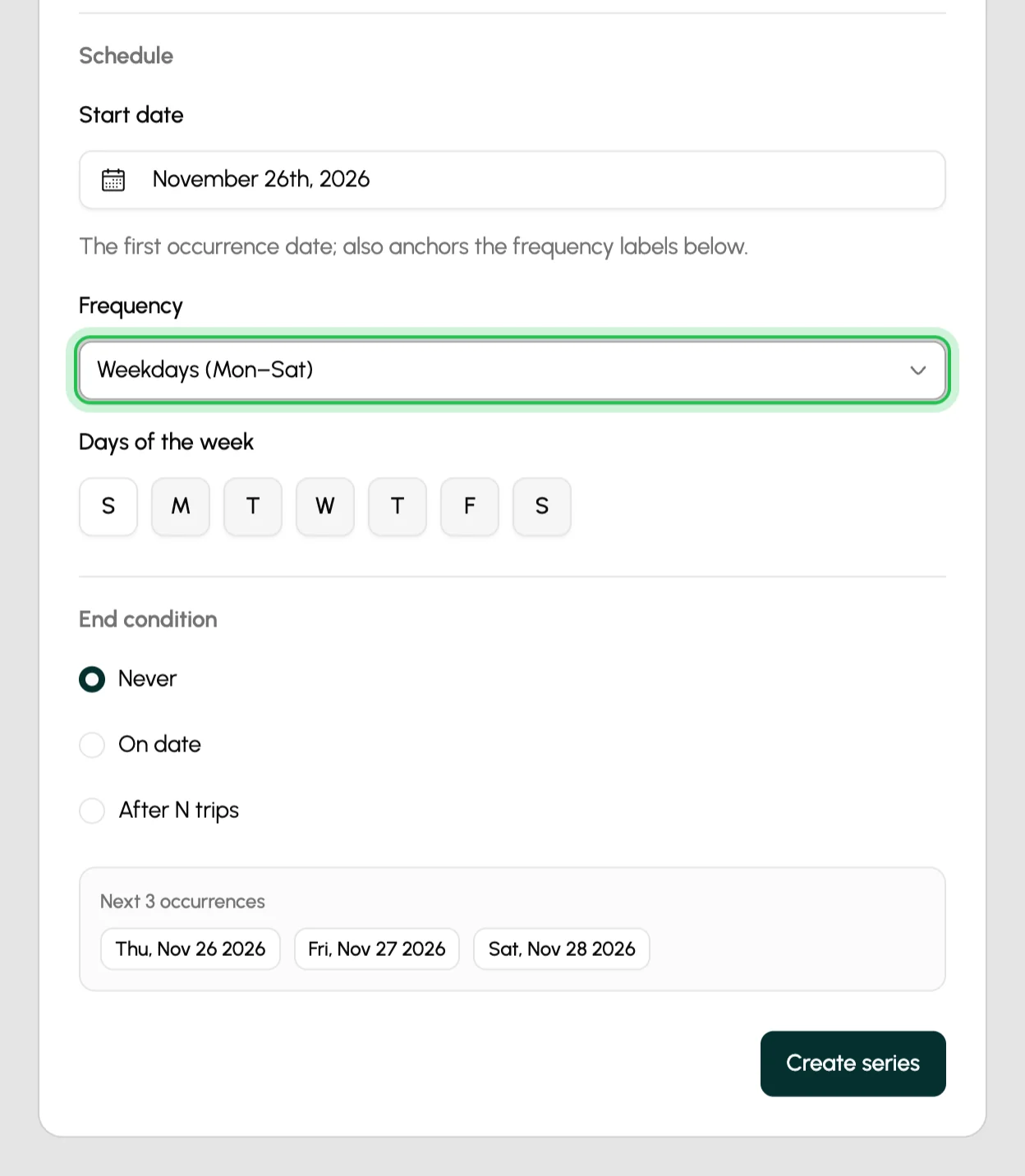
Pick a start date and a frequency:
- Daily
- Weekdays (Mon–Sat), with the days of the week you pick
- Weekly, on one day of the week
- Monthly, on one day of the month
- Custom interval: every N days
Then choose when it ends: Never, On date, or After N trips. The form previews the next three dates so you can check the schedule.
- 4
Save
Click Create series. The series starts on its start date, and each run appears in the trips table marked as pending.
Manage your recurring trips
Click Manage recurring on the Expenditure page to see every series, with its next run and rate per trip. Search by plate, route or driver, or filter by destination. For each series you can:
- Pause it (for example while a truck is in the garage) and Resume it later.
- Edit the template or schedule. Changes apply to trips created from then on.
- Cancel series to stop it for good. A cancelled series can be Restarted, or its schedule deleted.