 Travada Systems
If your trips live in a spreadsheet, you don't have to type them again. Save the sheet as CSV and import it. Travada matches your columns, adds any trucks and drivers it doesn't know, and checks every row before anything is saved.
Get your file ready
One row per trip. Your columns can be named anything; you match them during the import. A trip needs a date, vehicle registration, driver and destination, and should have a rate (a blank rate imports as 0, with a warning). Detention, fuel, clerk fee, mileage fee, parking, and up to two repairs and two extra costs (each with a description) are optional.
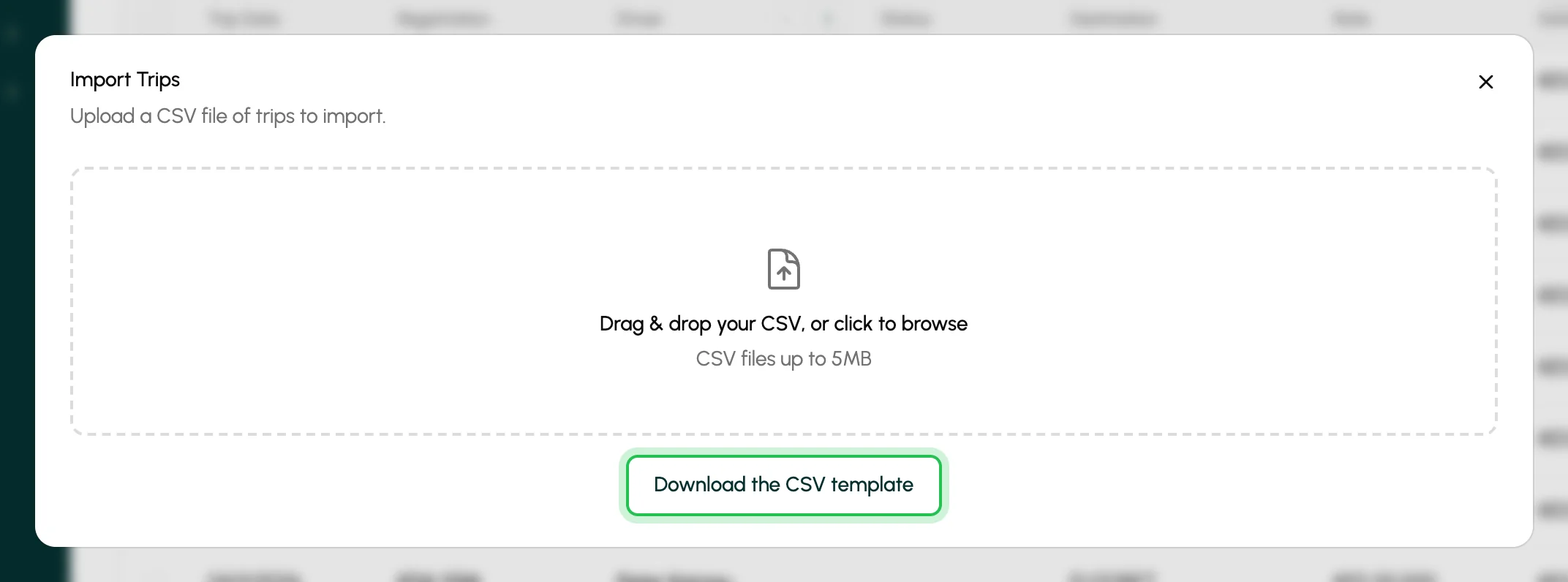
Not sure of the layout? The import window has a Download the CSV template link with the columns already set up.
Import
- 1
Open the import
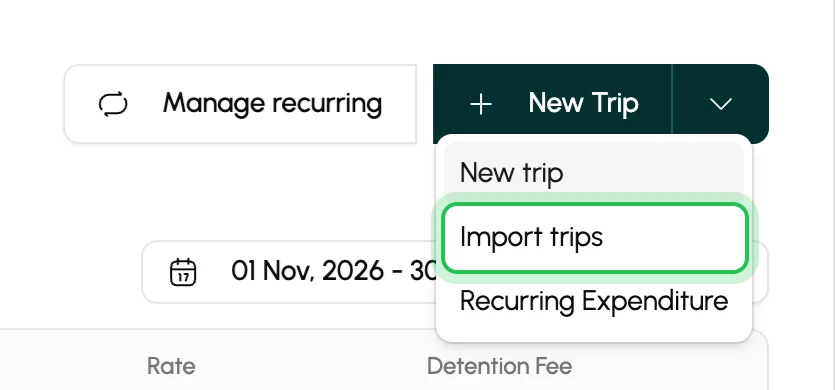
On the Expenditure page, open the arrow next to New Trip and choose Import trips.
- 2
Upload your file
Drag your CSV into the window, or click to browse. Files up to 5 MB.
- 3
Map columns
Travada matches your columns to trip fields by their names, even when they're called something else, such as Truck or Diesel. Check each match, and set any field your file doesn't have to Not in file.
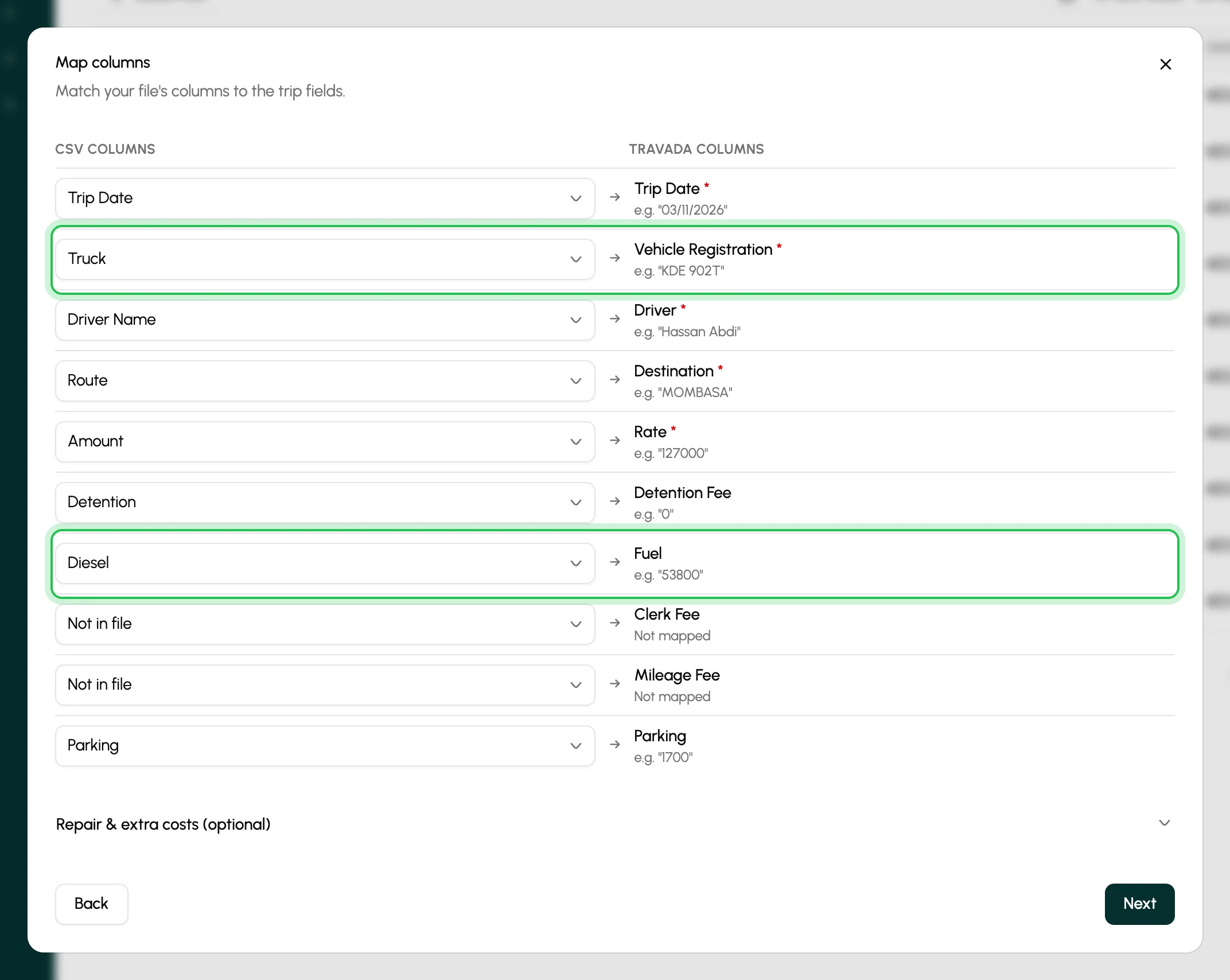
Your column names on the left, Travada's fields on the right, with an example value from your file. - 4
Add missing vehicles and drivers
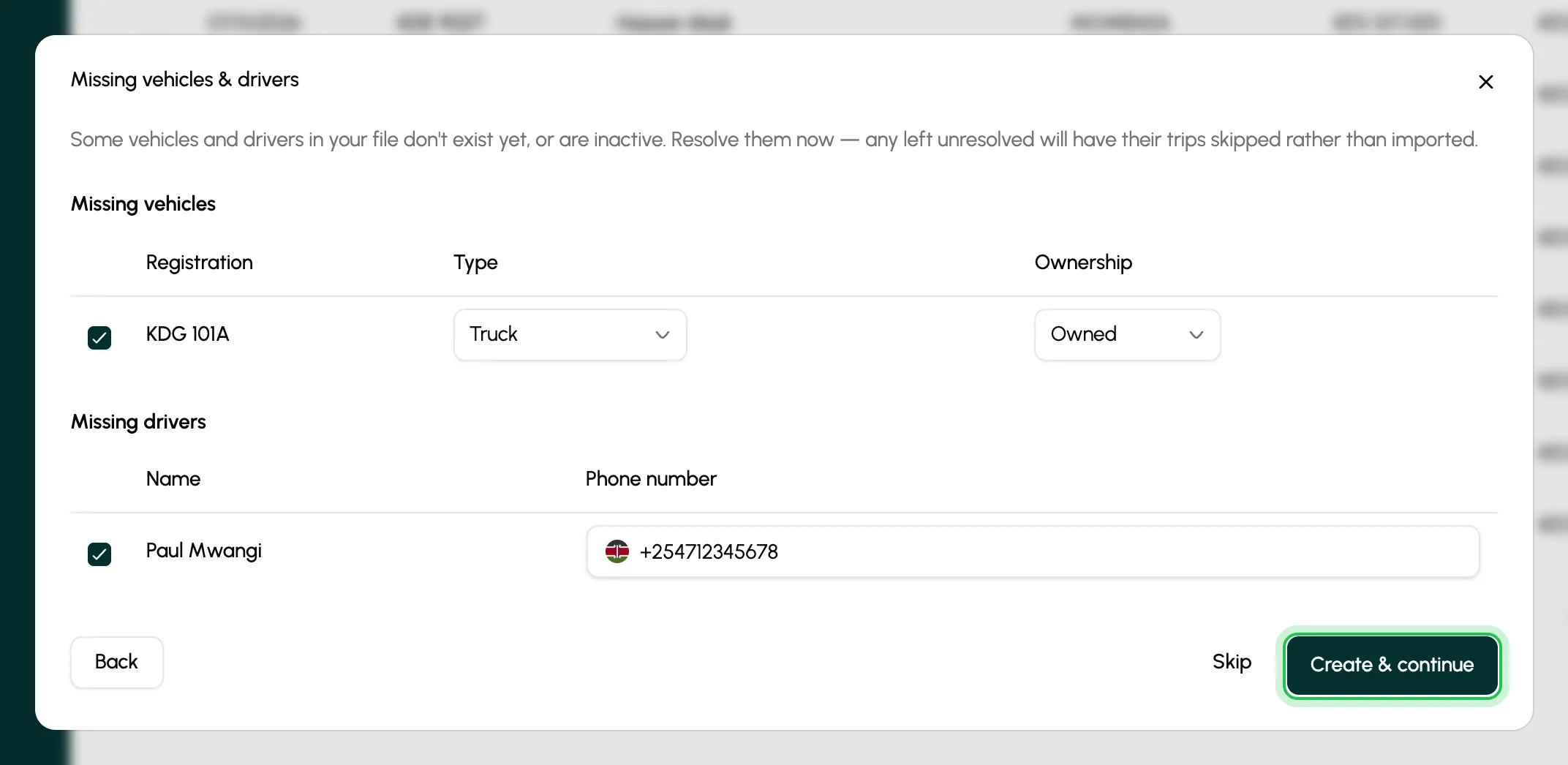
Trucks and drivers in the file that Travada doesn't know, or that are inactive, are listed here. Give each truck its type and ownership and each driver a phone number, untick any you don't want, then click Create & continue. Choose Skip to leave them all out; trips for anything left unresolved are skipped, not imported.
- 5
Let it run
The import runs in the background. You can keep working, and a notification shows its progress.
- 6
Check the results
Import complete shows how many trips were imported, and any rows that were skipped or have errors or warnings, each with the reason.
Warnings and errors
- Errors stop a row from being imported, for example a missing date or driver, or an amount that isn't a number. Fix the row in your file and import just those rows again.
- Warnings don't stop it. For example, a blank rate, or two rows with the same date, vehicle, destination and rate flagged as possible duplicates. Both are imported anyway.
Undo an import
Changed your mind? Undo import on the results screen removes every trip that import added, and nothing else.