 Travada Systems
Every report is made the same way: from the page that holds its trips, with that page's dates and filters. Only admins can make reports.
- 1
Set up the page
Open the page the report comes from: for example Expenditure for a Vehicle P&L, or Incomes → Rate for a Rate Summary. See The reports you can make.
Set the dates to the period you want, and filter if the report should only cover some trucks, drivers or destinations.
- 2
Choose the report
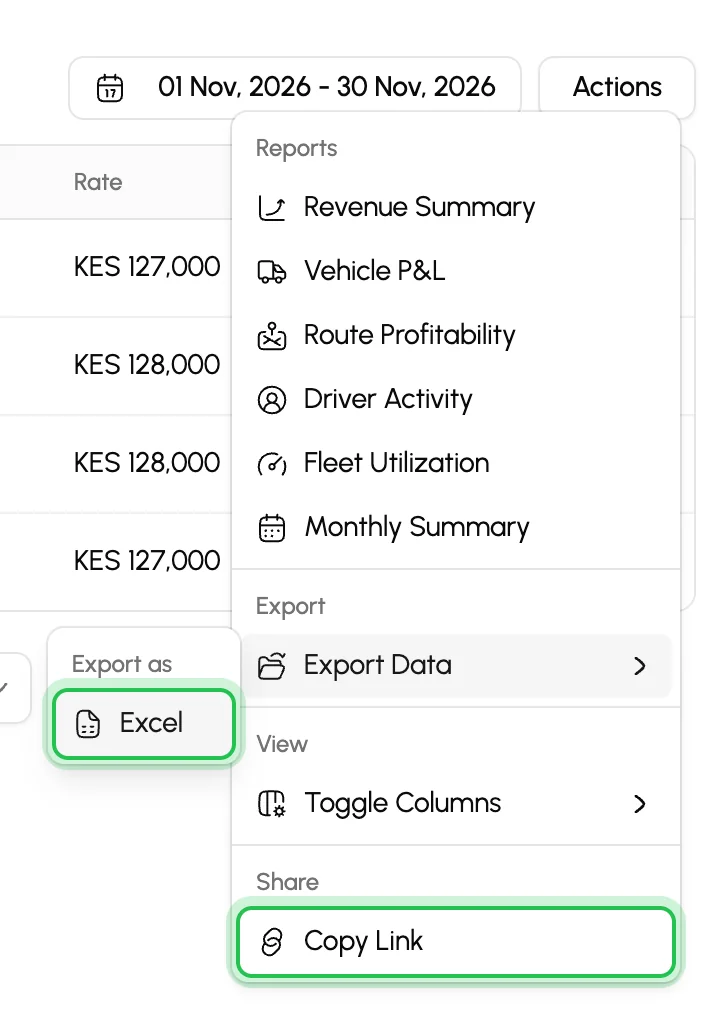
Click Actions and pick the report under Reports.
- 3
Fill in the form
Every report asks for:
- Report Name: something you'll recognise later, such as "October route profitability".
- Report Expiry Date: when the link stops working. It defaults to 30 days from today.
Some reports ask for more. The Rate Summary asks for the client, container details and VAT; the Fuel Cost report asks whether to group By Vehicle or By Destination.
- 4
Generate
Click Generate Report. Travada lets you know when it's ready, and adds it to the Reports page.
Then
- Share it by link.
- Find it later on the Reports page.