 Travada Systems
Every truck you run lives on the Vehicles page. Trips are recorded against them, so the list needs to match what's actually on the road.
Add a vehicle
Open Vehicles → Add/Manage Vehicles and click Add Vehicle. Enter the registration, the vehicle type and whether you own or hire it. The full steps are in Add your trucks.
Edit a vehicle
- 1
Open the vehicle's menu
In the vehicles table, click the ⋯ at the end of the row and choose Edit vehicle details.

- 2
Change the details
You can change the registration, the vehicle type and the ownership. Click Save changes.
See how a vehicle is doing
Choose View details in the row's menu, or click the registration. The vehicle's page shows when it joined, its trips and revenue to date, and its last trip. Below, Insights has its revenue, costs and profit for the period you pick, plus its top destinations, drivers and where its costs go. Trips lists every trip it made.
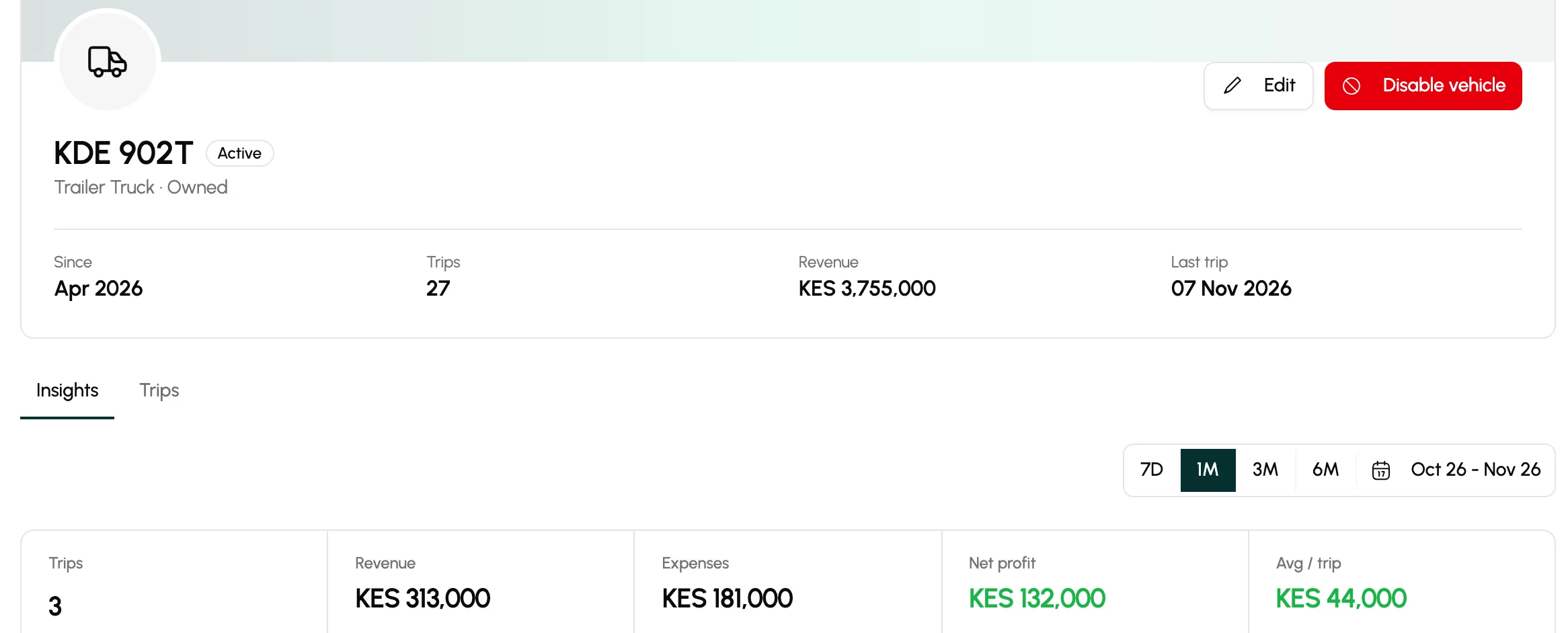
Edit and Disable vehicle are at the top of the page too.
Find a vehicle
Type in Filter by Registration above the table, or narrow it by Type or Ownership. Actions → Export Data downloads the list.