 Travada Systems
The first time an admin signs in, Travada opens a short setup wizard. It takes your company details, then helps you add one truck, one driver and a first trip, so the dashboard has something real on it straight away.
You can leave any step for later. Whatever you skip stays on a setup checklist on your dashboard.
The four steps
- 1
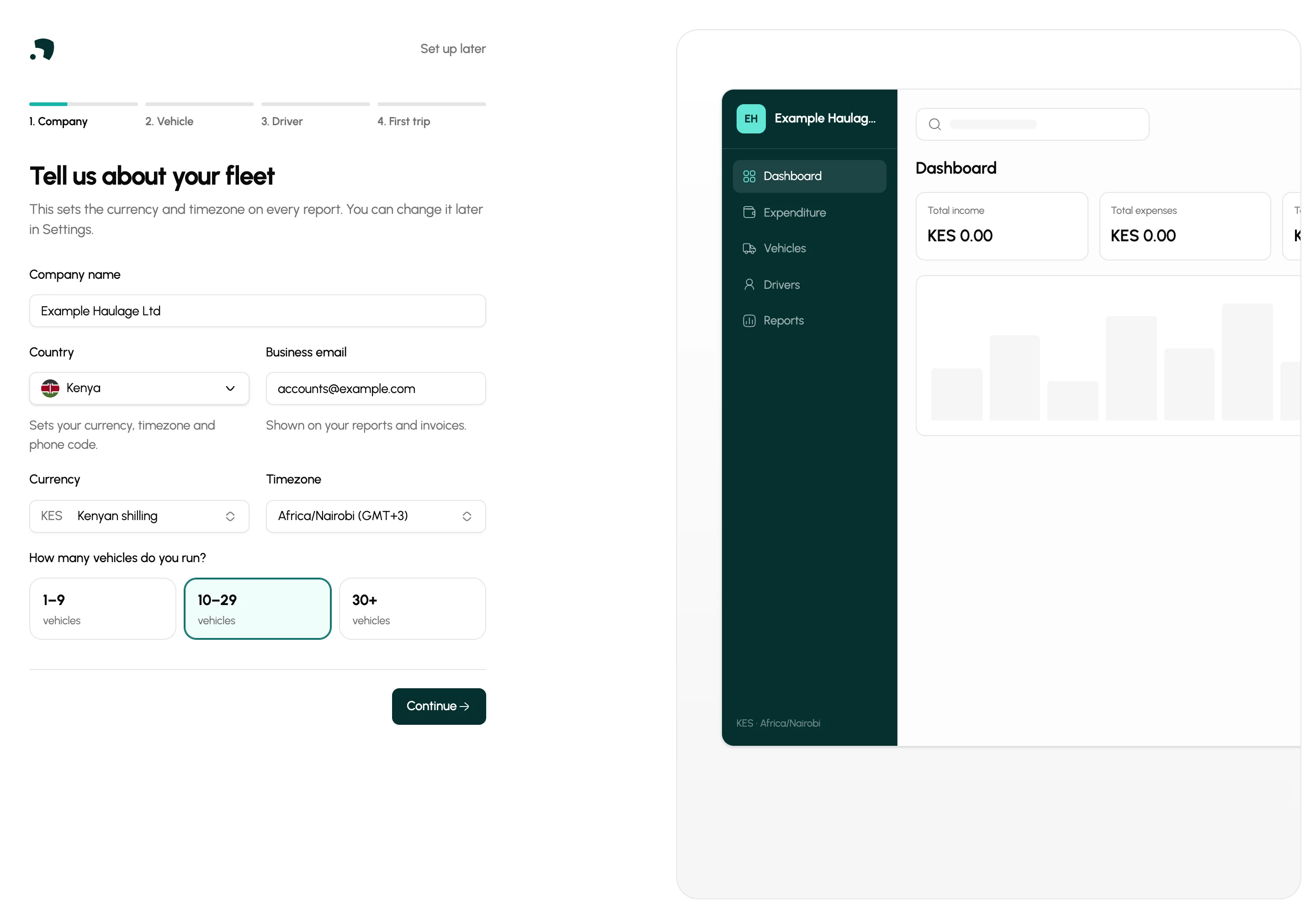
Tell us about your fleet
Enter your company name, country, business email, currency and timezone, and roughly how many vehicles you run.
The currency and timezone are used on every report. You can change them later in Settings → Organization.
- 2
Add your first vehicle
Enter one truck's registration, its vehicle type and whether it's owned or hired. Add another if you like, or continue. The rest of the fleet can come later.
- 3
Add your first driver
Enter the driver's full name and phone number. Pick the country from the code in front of the number, or type a local number such as 0712 345 678.
- 4
Put your first trip on the board
Choose one:
- Log a recent trip. Your vehicle and driver are filled in; add the date, destination, rate and costs.
- Import past trips. Upload a spreadsheet and missing trucks and drivers are added for you. See Import trips.
- I'll do this later. Go straight to the dashboard.
After the wizard
Admins see a short setup checklist on the dashboard: company details, a vehicle, a driver and your first trip. Each item links to the page where you finish it, and ticks off on its own once it's done.