 Travada Systems
At the end of a month or a contract, your client wants to see the trips you're billing for. The Rate Summary report lists them with their rates and a total, and you share it as a link that opens without a login.
Make the report
- 1
Pick the trips
Open Incomes → Rate. Set the dates to the billing period, and filter by Registration or Destination if you're billing only some trips. The report uses exactly the trips on the page.
- 2
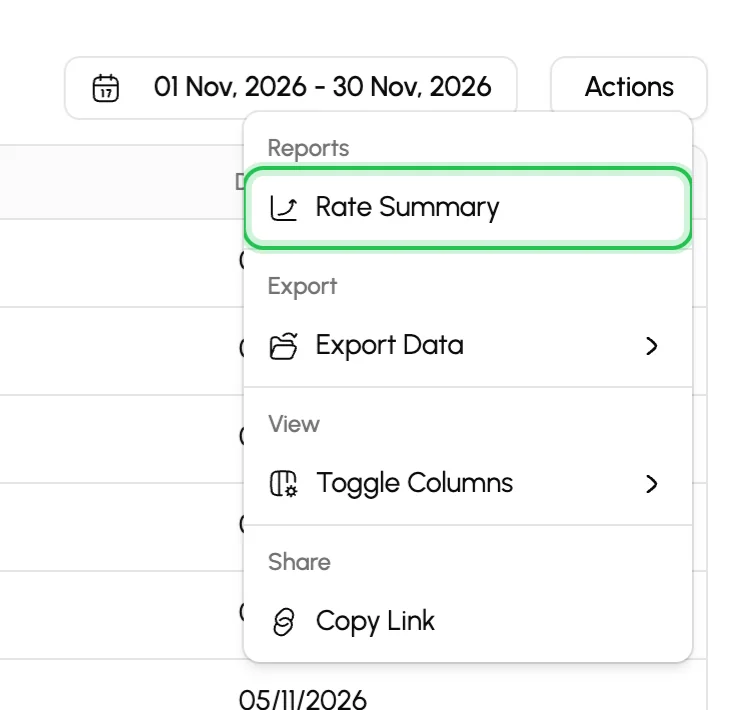
Open Rate Summary
Click Actions and choose Rate Summary.
- 3
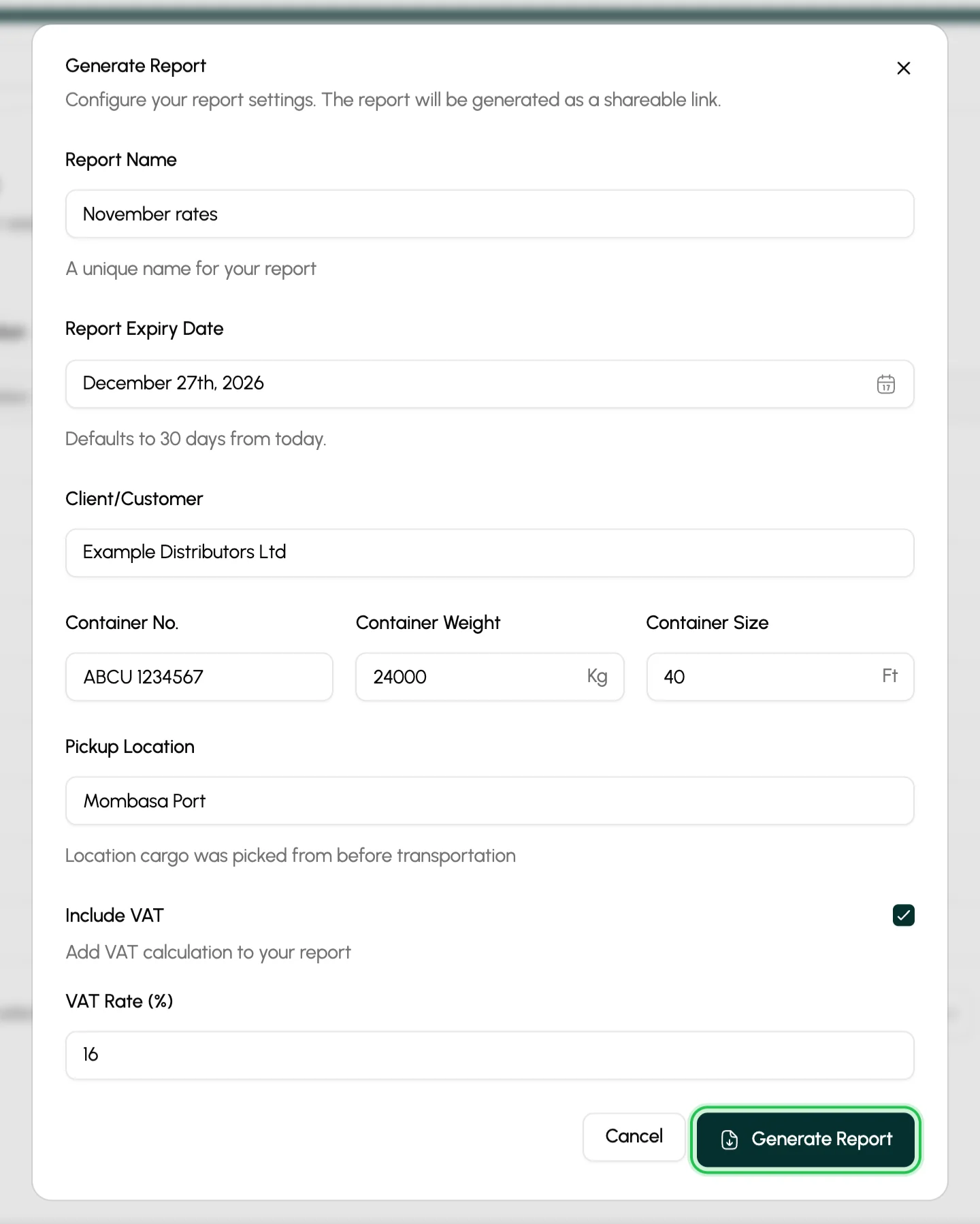
Fill in the details
- Report Name: something you'll recognise later, such as "November rates".
- Report Expiry Date: when the link stops working. It defaults to 30 days from today.
- Client/Customer: shown at the top as who the report is for.
- Container No., Weight and Size, and Pickup Location: fill them in if the client needs them.
- Include VAT: adds VAT at the rate you set (16% to start with).
- 4
Generate and share
Click Generate Report. You get a link to send the client. They see the trips with their dates, registrations, destinations and rates, the subtotal and total with VAT if you added it, and can download it as a PDF.
Find it again
Every report you make is listed on the Reports page, where you can copy its link, open it, download it or delete it.