 Travada Systems
When your station confirms the month's discounted price, you don't have to enter it trip by trip. Select every trip it applies to and add the discount once. Each trip still gets its own amount, based on how much fuel it used.
- 1
Filter to the trips
Open Expenses → Fuel. Set the dates to the period the price covers, and filter by Registration or Destination if it only applies to some trucks or routes.
- 2
Select them
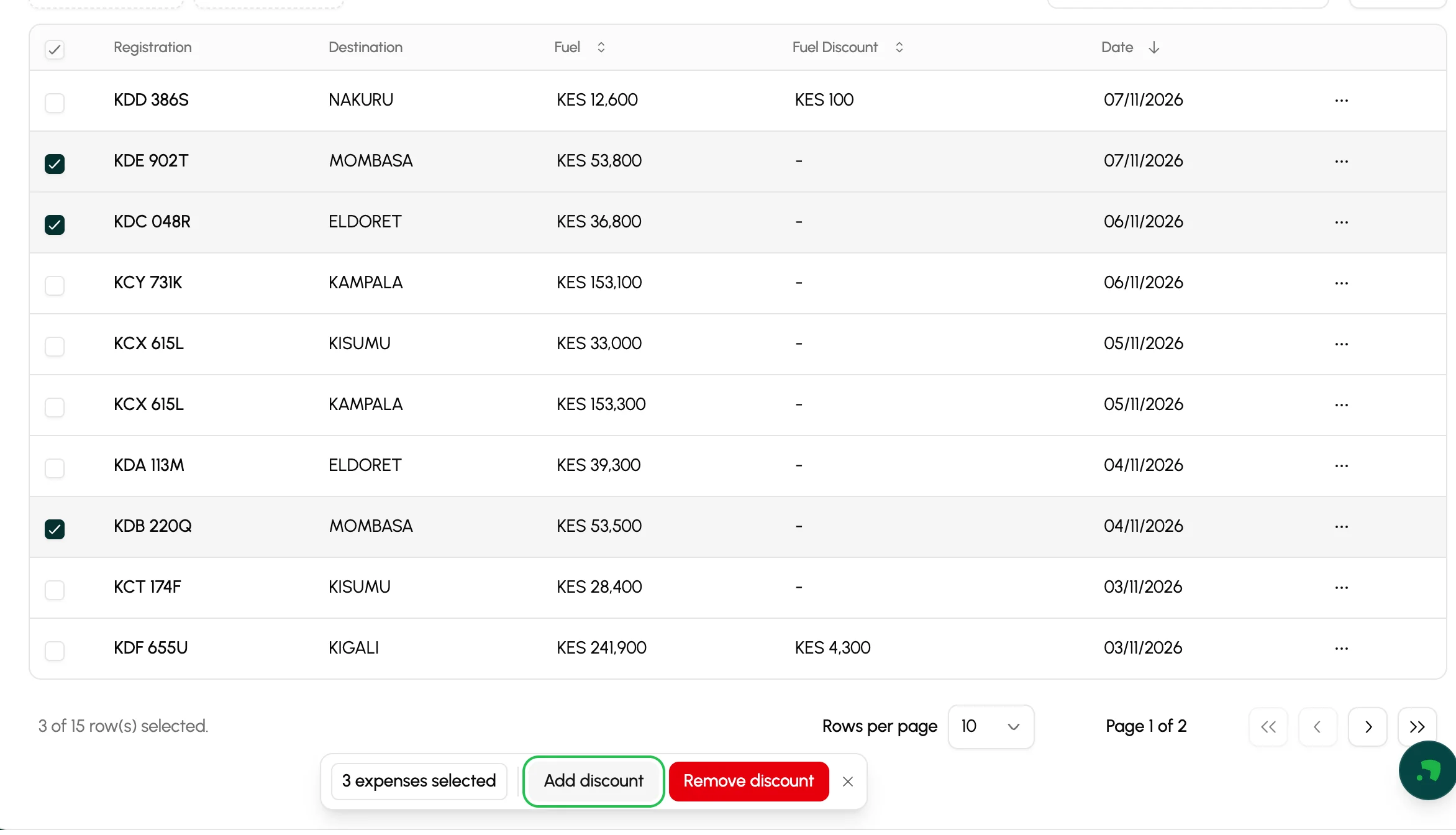
Tick the trips, or tick the box in the header to select every trip on the page. A bar appears at the bottom showing how many are selected.
- 3
Add the discount
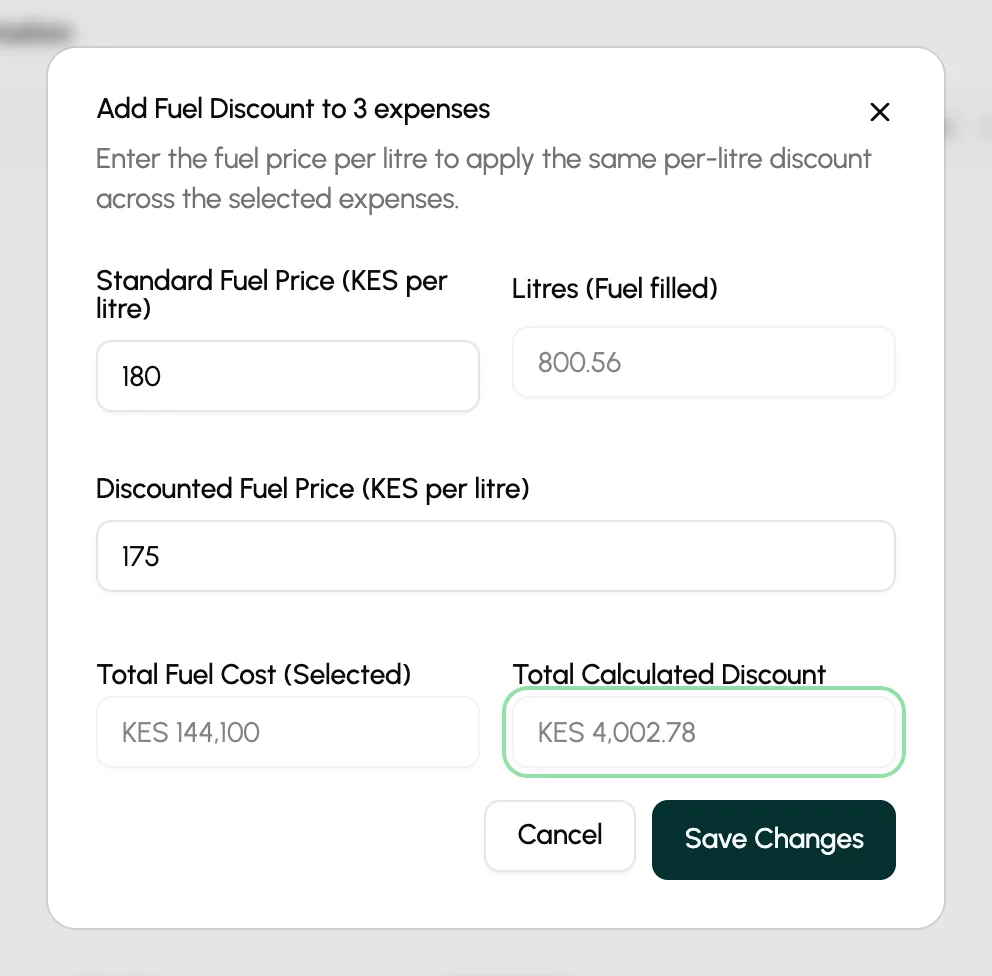
Click Add discount in the bar. Enter the Standard Fuel Price and the Discounted Fuel Price per litre, then Calculate Discount. Travada shows the total fuel, litres and discount across the selected trips.
- 4
Save
Click Save Changes. Each selected trip now has its own discount in the Fuel Discount column.
How each trip's discount is worked out
The same per-litre saving applies to every trip, but each trip's litres come from its own fuel cost:
trip discount = (trip's fuel ÷ standard price) × (standard price − discounted price)
So a trip that used twice the fuel gets twice the discount. See Fuel discounts for a worked example.
Undo it
Select the same trips and choose Remove discount in the bar to clear their discounts. Adding a new discount to a trip replaces the one it had.